6. DTU's course website just got an upgrade 😎
Github repo: DTU courses extension
Prologue
What started out as a curiosity, turned into an exam project in the DTU course “Social Graphs and Interactions” (02805). Repo can be found here. Even though we managed to create and analyse the course graph for the exam (there was more depth to the project, but let’s omit that for now), I knew that I wanted to somehow help other students in practice, using this data.
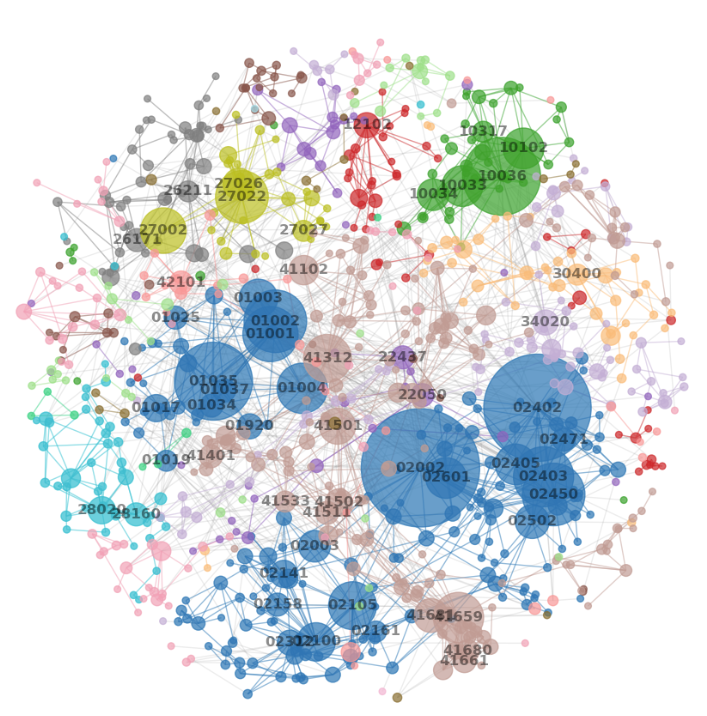
The graph shows all courses (which have neighbors), and how they are connected to other courses by their prerequisites, where each node is colored by department, and has size equivalent to its degree.
Therefore I came up with a way to help fellow students, using a Chrome extension that alters the DTU course website (and the GitHub here). A problem with the current website is, that while it does show what courses are required for taking ‘this’ course (the “prerequisites”), it does not show which courses it is a prerequisite to. In other words, it does not show the “subsequent” courses. In general it is quite hard to get an overview of how courses are connected… but the extension solves that!
I’d also like to add that the Javascript (JS) / Chrome extension part is heavily vibe-coded. It was very fascinating to orchestrate this and let the chatbot build the right features one at a time. All the JS logic is contained in a single file, so it’s easy to edit the entire thing at the same time. I realized that designing a good experience was very important, and has actually been quite challenging. As the AI’s “manager” I could focus more on the design and user experience, instead of being too fixated on the code itself, as I might become too attached to it, and less willing to change it.
Anyway, let’s go through the steps on by one, to see how it all comes together
Scraping
There is no API for retrieving course data nicely, which is why we need to scrape the course website instead (for each course). Using the BeautifulSoup4 library we can easily go through all possible course numbers, and check if the website returns a valid course description:
# Imports
import requests
import json
from bs4 import BeautifulSoup

# Initial
base_url = "https://kurser.dtu.dk/course/"
cookies = {
    'ASP.NET_SessionId' : "<SessionId>",   # not that important
    '{DTUCoursesPublicLanguage}' : 'en-GB' # ensure that the site is always in English
}

# Department number-to-name mapping
with open('department_names.json', 'r') as file:
    departments = json.load(file)
departments_keys = list(departments.keys())

# Loop through all possible course sites
valid_courses = {}
for dep in departments_keys:
    for i in range(0,1000):
        course_num = f"{dep}{i:03}"
        course_url = base_url + course_num
        response = requests.get(course_url, cookies=cookies)
        soup = BeautifulSoup(response.content, 'html.parser')
        title = soup.title.string
        if title is None:
            continue
        valid_courses[course_num] = response.text

# Save text content for each course description
with open('valid_courses.json', 'w') as file:
    json.dump(valid_courses, file)
Course Graphs
Now we need to extract the relevant information from the HTML pages in order to create a graph, using the NetworkX library.
We start by creating all the nodes:
# Initialize directd graph
G = nx.DiGraph()

# Go through each course
for course_num in valid_courses:
    department = course_num[:2]
    G.add_node(course_num,
               course_num      = course_num,
               page            = valid_courses[course_num],
               department      = department,
               color           = department_colors[department],
               department_name = department_names[department])
Then we add directed edge that points away from the prerequisite course:
for course_num in valid_courses:

    # Initialize BeautifulSoup object
    page = G.nodes[course_num]['page']
    soup = BeautifulSoup(page, 'html.parser')

    # Define the search pattern to match both "Academic prerequisites" and "Mandatory prerequisites"
    search_pattern = r"(Academic prerequisites|Mandatory Prerequisites)"

    # Find the label element that matches the pattern
    label = soup.find('label', string=re.compile(search_pattern))
    if label is None:
        continue  # Skip if no label is found

    # Get the parent element that contains the label and prerequisites
    parent = label.find_parent().find_parent()

    # Get the second <td> (assuming it contains the prerequisites text)
    prerequisite = parent.find_all('td')[1].text

    # Remove whitespace and line breaks
    prerequisite = prerequisite.replace('\r', ' ').replace('\n', ' ')

    # Extract 5-digit course numbers
    prerequisites = set(re.findall(r'\d{5}', prerequisite))

    # Add edges to the graph for valid prerequisites
    for prerequisite in prerequisites:
        if prerequisite in G.nodes:
            if prerequisite != course_num:  # Skip self-loops
                G.add_edge(prerequisite, course_num)
And the most important step is then to create a subgraph for each course number, where the course of interest is the center or root, and each layer/level “forward” is the next level of subsequent courses, and each layer/level “backwards” is the next level of prerequisite courses.
# Get all courses
all_course_nums = list(G.nodes())

# Create subgraph for all course numbers
for center_node in all_course_nums:

    # Get forward and reverse BFS nodes
    forward_nodes = nx.single_source_shortest_path_length(G, center_node)
    reverse_nodes = nx.single_source_shortest_path_length(G.reverse(copy=False), center_node)

    # Combine all relevant nodes
    all_nodes = set(forward_nodes.keys()) | set(reverse_nodes.keys())
    levels = {}

    for node in all_nodes:
        if node == center_node:
            levels[node] = 0
        elif node in reverse_nodes:
            levels[node] = -reverse_nodes[node]
        else:
            levels[node] = forward_nodes[node]

    # Create a new DiGraph with only those edges
    filtered_subG = nx.DiGraph()
    filtered_subG.add_nodes_from(all_nodes)


    # Build layout positions
    pos = {}
    level_nodes = {}
    for node, level in levels.items():
        level_nodes.setdefault(level, []).append(node)

    for level in sorted(level_nodes):
        nodes = level_nodes[level]
        for i, node in enumerate(nodes):
            pos[node] = (level, -i)

    # Remove edges if they don't point "forward"
    edges = [
        (u, v) for u, v in G.subgraph(all_nodes).edges()
        if pos[u][0] < pos[v][0]
    ]
    filtered_subG.add_edges_from(edges)

    # Write to JSON
    graph_to_json(center_node, filtered_subG, levels)
(the rest of the code can be found in the GitHub repo)
To see what this looks like, consider the image below. The center is 02180. Is has 5 prerequisites: (02100,02312,02105,01019,01017), and is itself the prerequisite to 3 courses (02256,02287,02285)
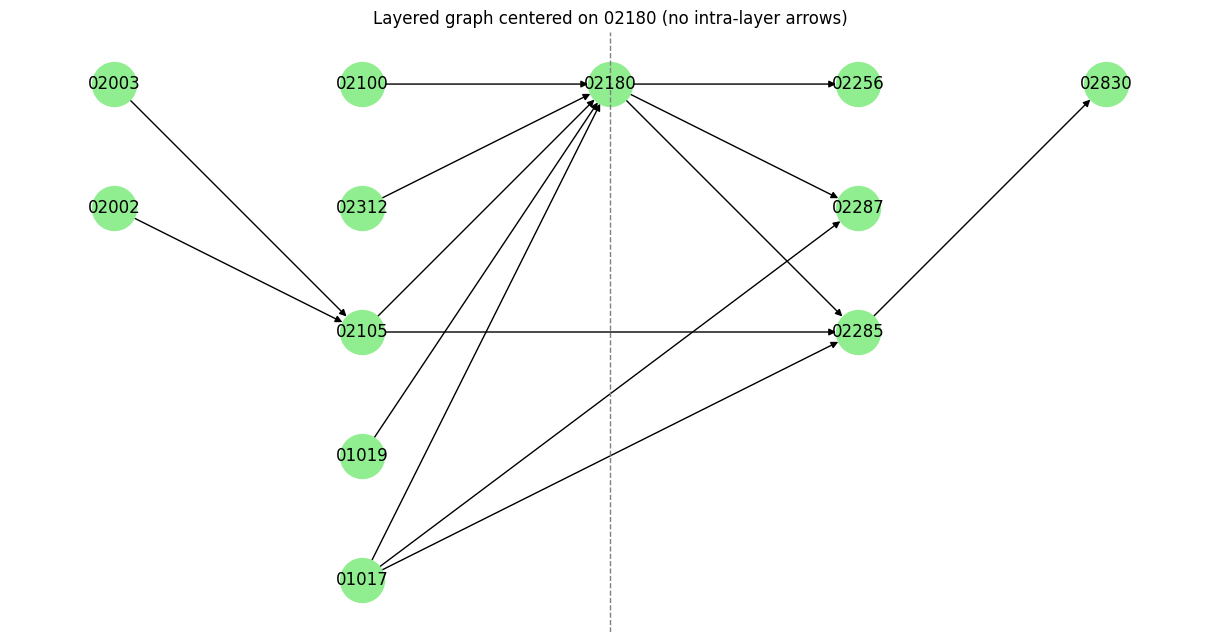
The goal is to insert this graph into the course website itself, and this is where we get to the Chrome Extension
Chrome Extension
I quickly knew that it would be a problem to simply paste the image of the graph into the website. Not only is an image not interactive, but it would require quite a lot of data storage and loading.
Instead, I realized that the layered graph almost looked like a table structure, which is one of the most basic elements in HTML. Columns would indicate the “level” and rows would be added based on the number of nodes within the levels altogether.
Practical Stuff
To start creating a Chrome extension, I simply followed this tutorial. In essence, the center of the project is manifest.json
{
  "name": "DTU - Extended Course Overview",
  "description": "",
  "version": "1.0",
  "manifest_version": 3,
  "action": {
    "default_popup": "popup.html"
  },
   "content_scripts": [
        {
        "js": ["anseki-leader-line/leader-line.min.js","content.js"],
        "css": ["my-css.css"],
        "matches": ["https://kurser.dtu.dk/course/*"]
        }
    ],
    "web_accessible_resources": [
    {
      "resources": ["graphs.json", "id_to_name.json"],
      "matches": ["<all_urls>"]
    }
  ],
    "icons": {
    "16": "icons/icon16.png",
    "32": "icons/icon32.png",
    "48": "icons/icon48.png",
    "128": "icons/icon128.png"
  }
}
This basically defines the main settings, as well as which files to import as well (javascript and css)
When you have a project folder with this file within it, you can start testing the extension locally. To get it public, you first need to pay the “Chrome Web Store developer registration fee”, and then upload the project and get it approved by Google
The Magic of HTML/CSS/JS
To alter the HTML content of a page, you first need to define that you need access to a certain page. The wider the permission required, the harder it might be to get the extension approved. Luckily, I only need permission to alter these pages:
https://kurser.dtu.dk/course/*
We then need the content.js file that does the logic and rendering. The significant features are:
1) Read the json gists that are continuously updated through a github action
2) Run code as soon as files are loaded (using async)
3) Extend left-most div/table (the element with course type, name, points etc.)
4) Constructing and rendering tables, where the cells represent graph nodes (courses)
5) Render tables in HTML
6) Draw lines (edges) between cells, corresponding to the graph we computed. Lines are created using the “LeaderLine” package
7) Upon hovering, highlight node and its 1-hop neighborhood (highlight immediate neighbors in both directions)
8) Collapse graph if it’s too big; requiring the user to click in order to get the full view
In essence, we add a section to the course website, and create a table that represents the course graph. I use the awesome LeaderLine library for creating arrows (directed edges) between cell elements (nodes)
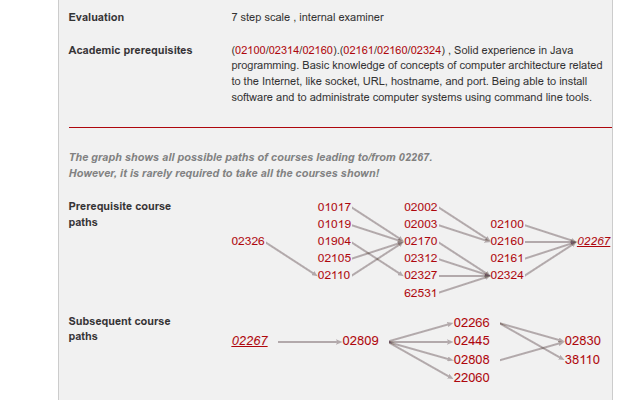
The result looks something like this:
Maintenance
As of now, the extension works fine, but this is only the case for the current course structure. If anything changes with the courses or the prerequisites, the graph will technically be wrong, which may cause confusion and frustration. Let’s try and fix that.
Automatic updates
I know for a fact that the course structure is changed once a year at around May or June. If I simply run the script yearly in July, then all will be good, right? Just to be certain, we run it monthly (because you never know).
What will likely happen is that I forget about the project, or maybe don’t really care anymore. Maybe the first years it will work fine, but after that it will not work anymore.
The obvious solution for this is then to create a scheduled job for scraping the course websites and create the graph. I tried some recommended websites for free python script hosting, but I also need file hosting as well. It did not go well. I then found that GitHub actions lets you do exactly that. GitHub actions is usually used for CI/CD tasks, but it doesn’t have to be that.
I have created an update_courses.yml workflow file. This will run all the processing the 1st of every month.
name: Update Graph

on:
  schedule:
    # Run 1st of every month
    - cron: '0 0 1 * *'
  workflow_dispatch: # allows manual run

jobs:
  run-python:
    runs-on: ubuntu-latest

    permissions:
      contents: write

    steps:
    - name: Checkout repository
      uses: actions/checkout@v3
      with:
        token: $

    - name: Set up Python
      uses: actions/setup-python@v4
      with:
        python-version: '3.12.11'

    - name: Install dependencies
      run: |
        python -m pip install --upgrade pip
        if [ -f requirements.txt ]; then pip install -r requirements.txt; fi

    - name: Run Python scripts
      run: |
        cd processing
        python 1_scrape_content.py
        python 2_create_graph.py

    - name: Push output file to branch
      run: |
        git config --global user.name  "github-actions[bot]"
        git config --global user.email "github-actions[bot]@users.noreply.github.com"
        git add jsons/valid_courses.json
        git add jsons/id_to_name.json
        git add jsons/graphs.json
        git commit -m "Update output for $(date +'%Y-%m-%d')"
        git push -u origin master --force
The coolest thing is that you let a “bot user” push files to the repo. So instead of adding the graph JSON file directly into the Chrome extension, the file will be located and updated at a specific file in the repo, which is directly accessible from the web (since its a public repo). It will basically act as a GitHub “gist” file.
Open-Sourcing
To be realistic, I can’t assume that people will agree with the design of the extension, so I want to give people the option to add improvements to it. It is a gift for the public after all. In the event that the course website undergoes a drastic change that renders the extension useless, I want people in the future to be able to fix that as well. I will, of course, be responsible for reviewing pull requests.
Maybe no one cares. Who knows? Now that I have this tool, I can’t imagine a world without it anymore. I want everyone to get the same benefits as I got from it. It was a fun project nonetheless.